AI Art QR · No-finder editor
A picture that scans. Corners you can hide.
QR Generator paints a link into an AI Art style, and it lets you take the three finder squares out of the frame. The code stays something you can save, sync, and scan.
See the squares disappearBuilt for people who print, post, and hand someone a code. Scan the export before you rely on it.

01 / AI Art
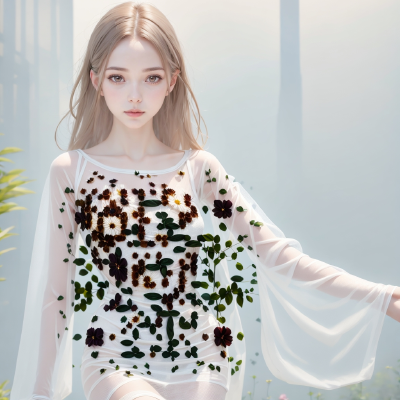
The picture is the code.
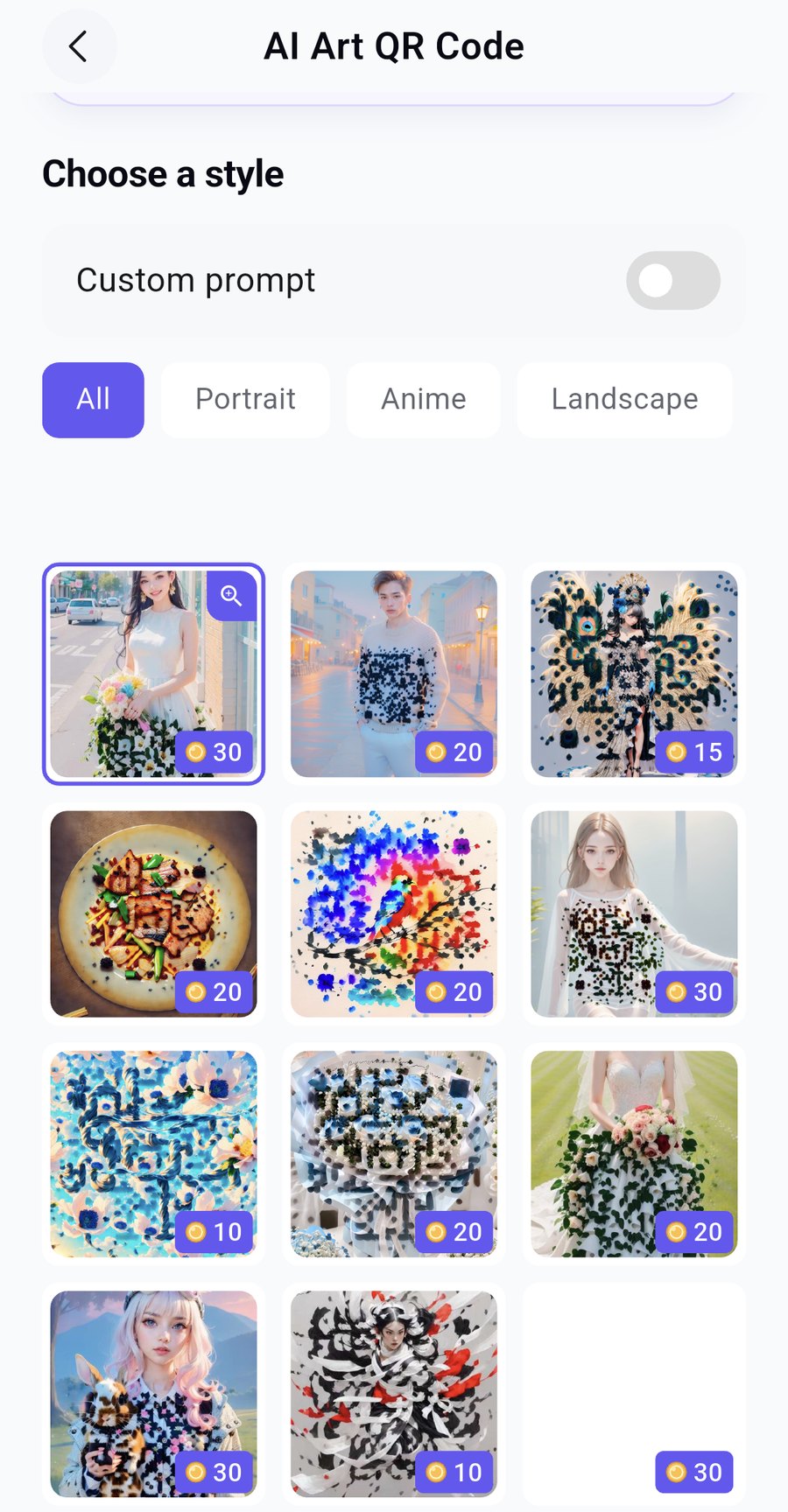
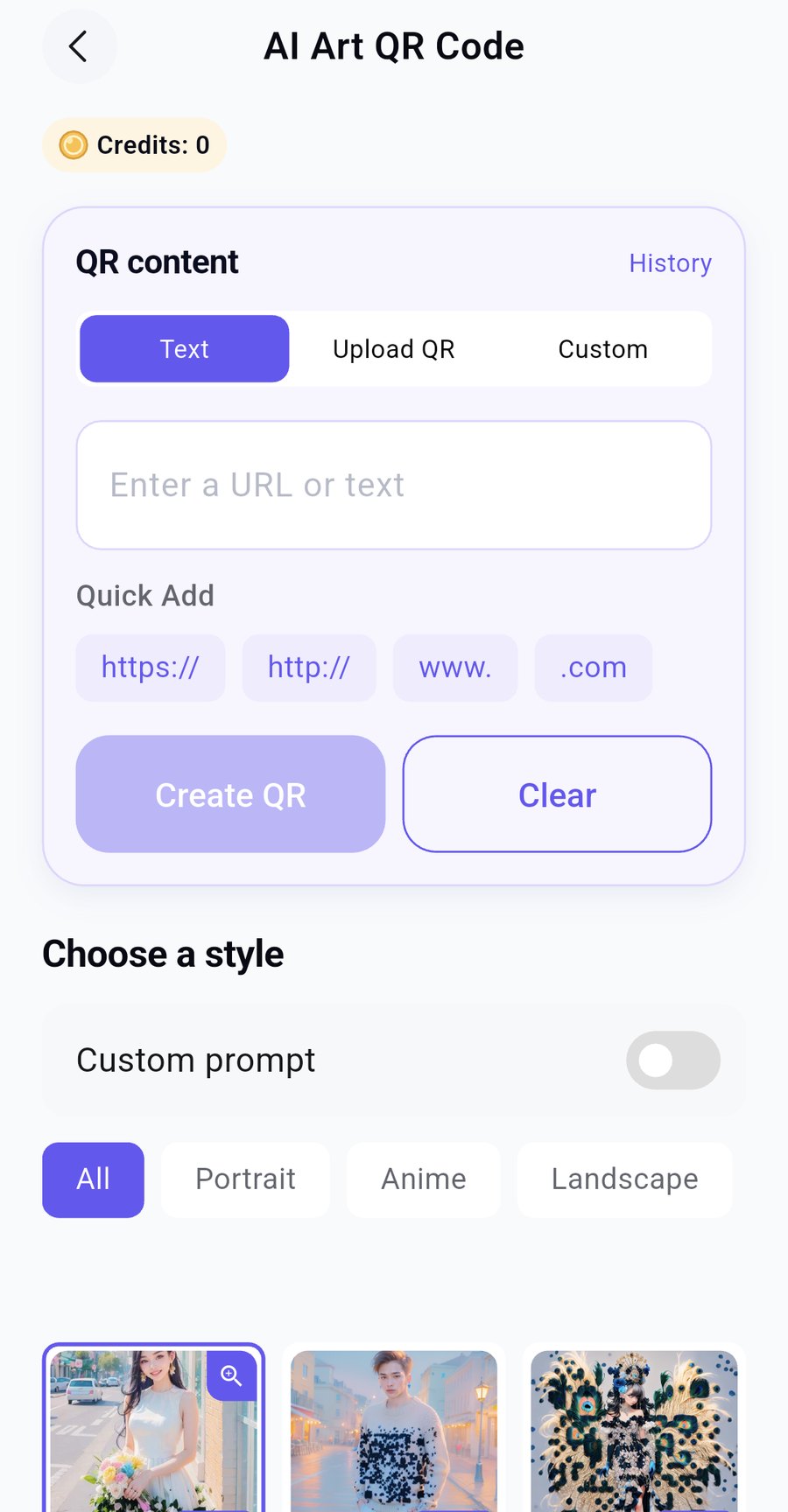
Choose a style, or write a prompt. The app builds a control code from a link you type, a QR you upload, or a file you synced from the no-finder editor — then draws that code into the artwork.
- Styles, not a blank box. Portrait, anime, landscape, and the rest of the gallery. Each card shows what a generation costs before you spend anything.
- A prompt when the grid is not enough. Custom prompt is there for a picture you can describe. It still uses credits.
- Browse for free. Credits are spent when you generate, not when you look.
02 / No-finder editor
Three squares, then none.
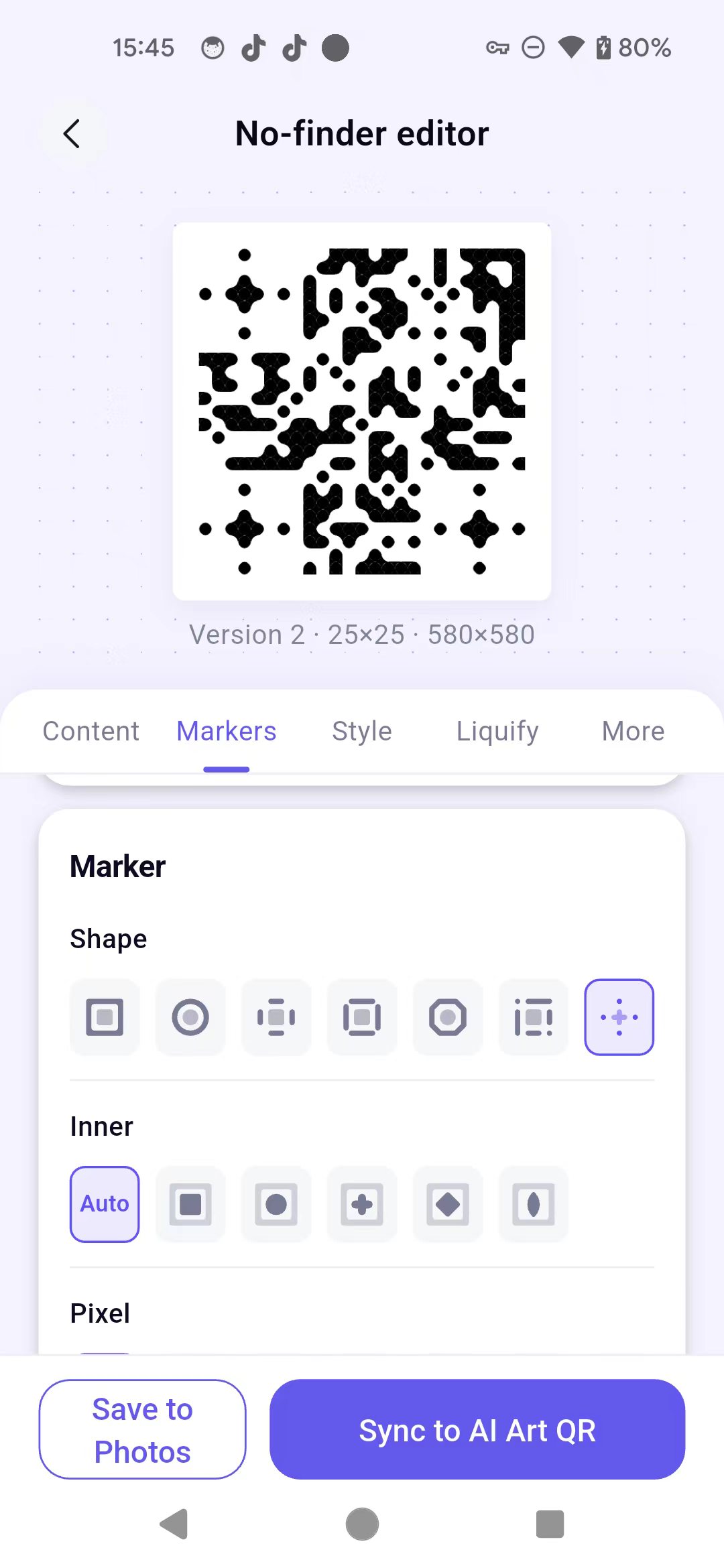
Finder patterns are the heavy frames in the corners. They help a camera lock on, and they fight almost every design. Drag the comparison. The left side still has the three squares. The right side is the editor with Data rendering — those frames are gone.

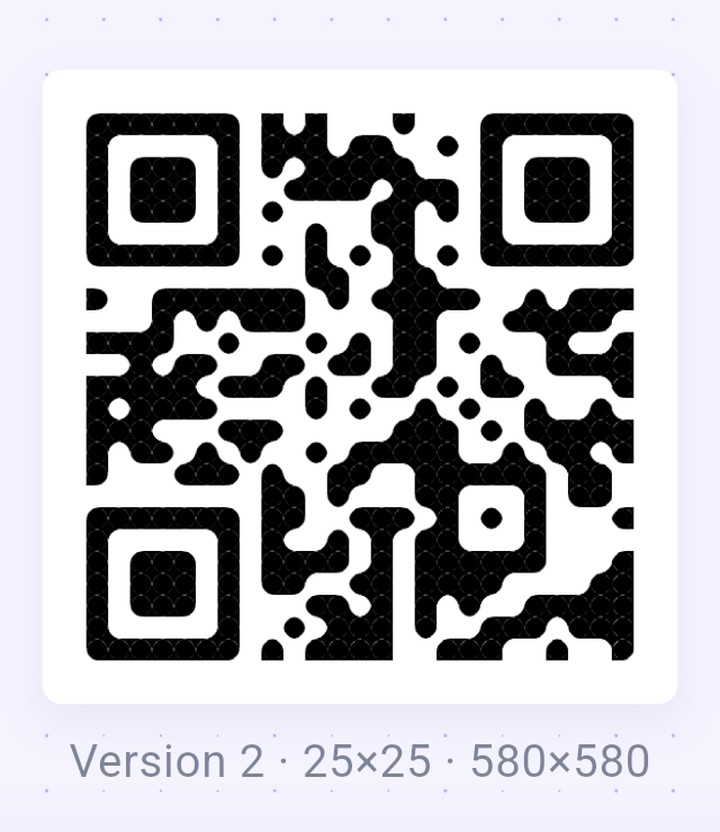 With finders
Data only
-
Markers
Restyle the frames before you remove them.
Square, circle, plus, box, octagon. Inner shapes. Pixel modules. One look for every marker, or a different look for each corner.
-
Liquify
Let the modules stop looking like a grid.
Crystalize or liquidify the pattern, then push perspective if the code has to sit on a surface instead of a flat poster.
-
Sync
Hand the result to AI Art.
Save to Photos, or sync the edited code into AI Art QR so the artwork starts from your version, not from a plain square.
03 / The studio
The first screen already knows the job.
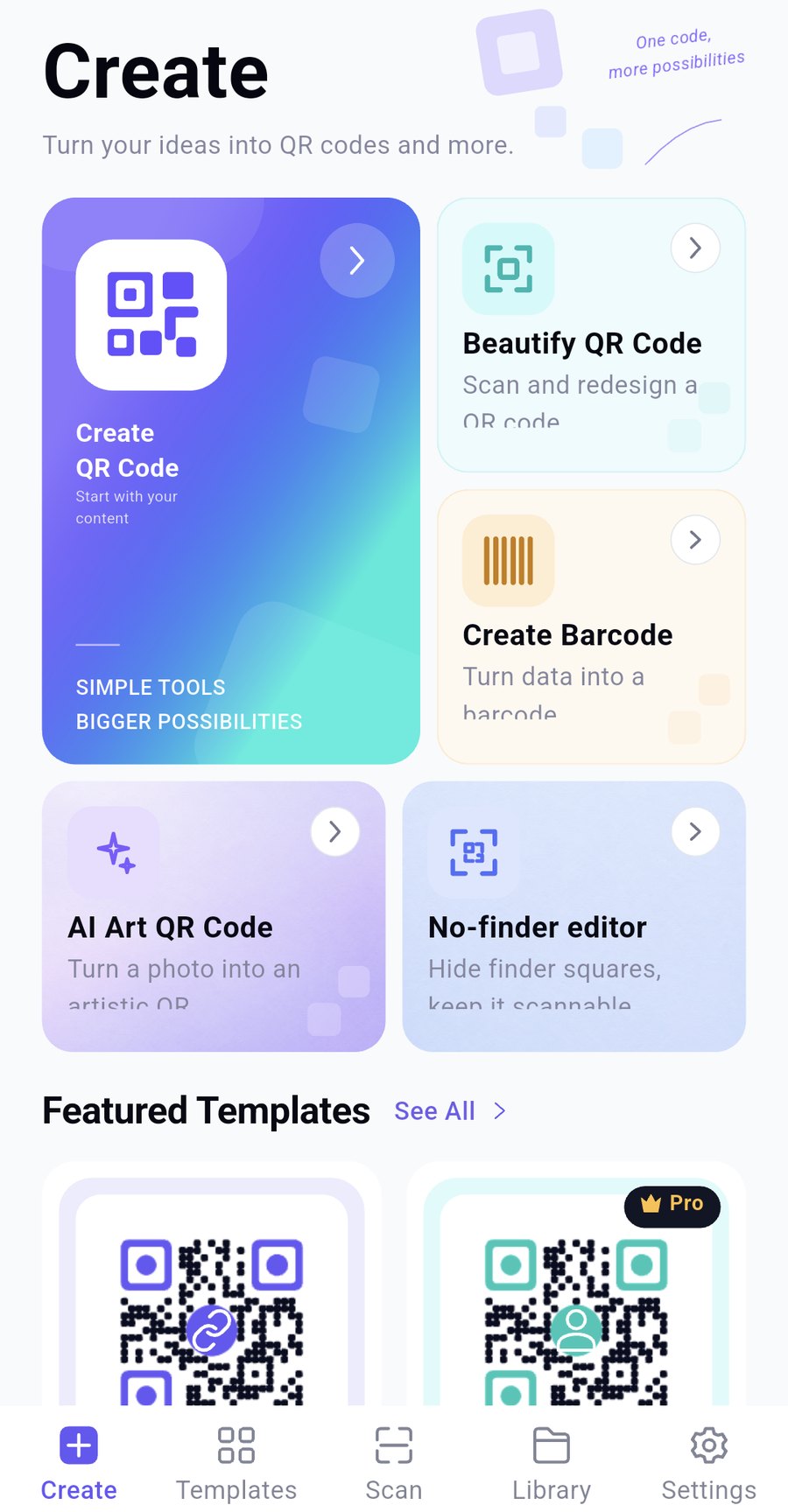
AI Art and the no-finder editor sit on the home screen, next to the rest of a working studio. Nothing important is buried in a menu.
- Create. Links, Wi-Fi, contacts, payments, and the other codes people actually ask for.
- Beautify. Start from a code that already exists. Scan it, then redesign it.
- Barcodes, templates, scan. A barcode when a QR is the wrong object. Templates when you want a code that is still obviously a code. Scan when you need to check your own work, or read someone else’s.
04 / Styles
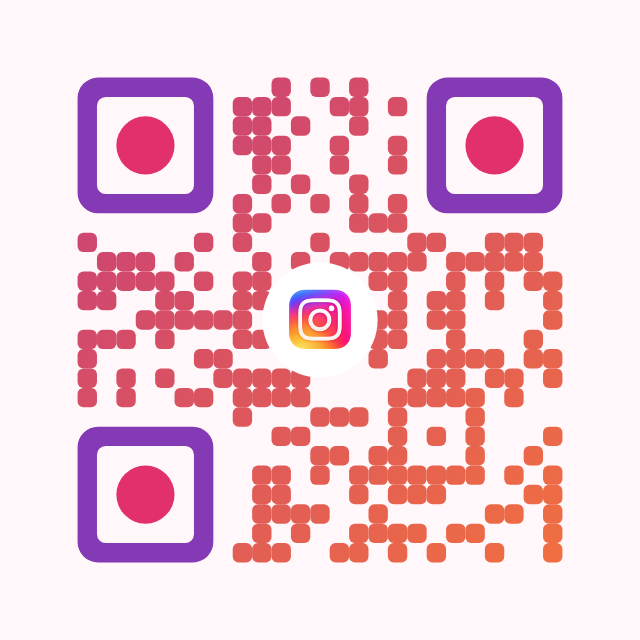
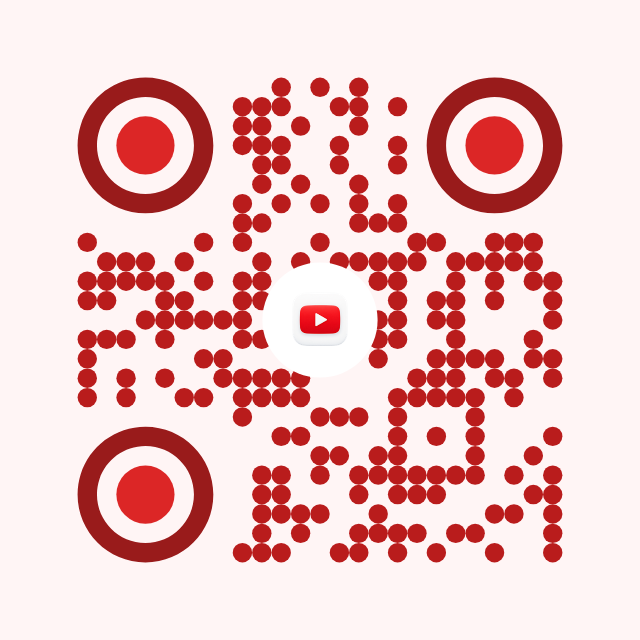
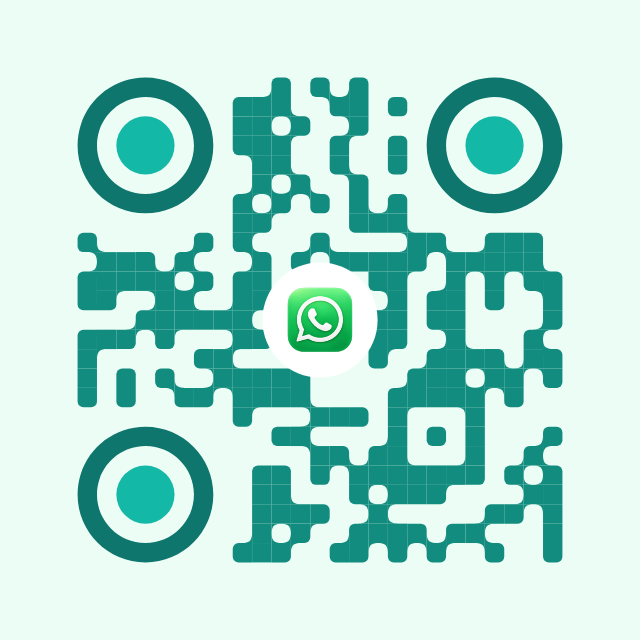
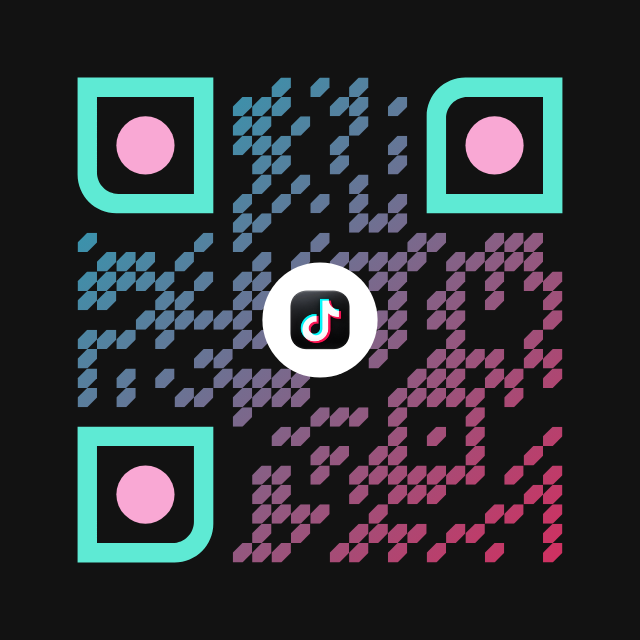
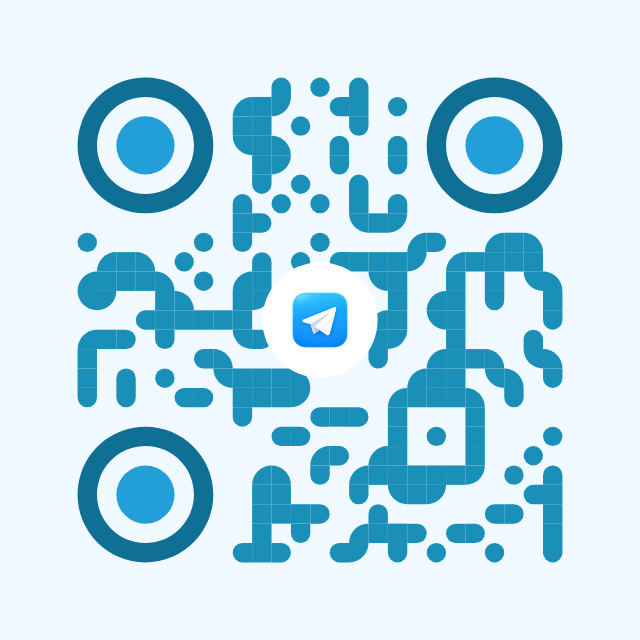
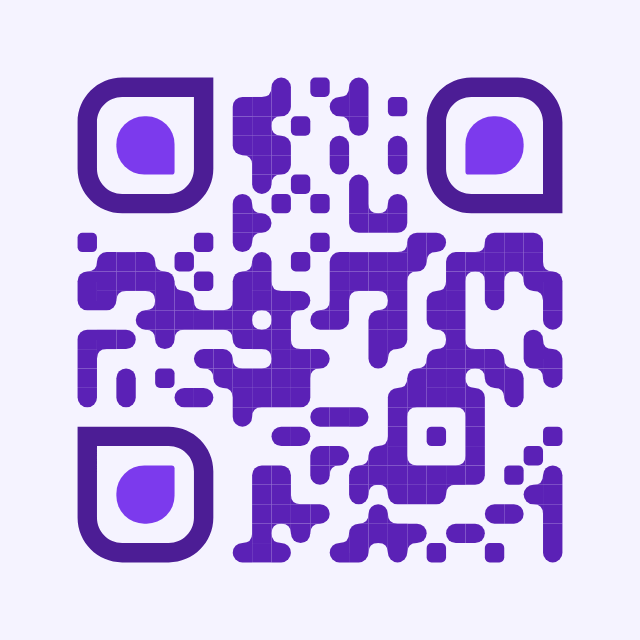
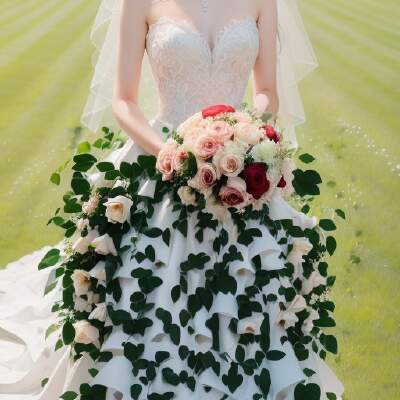
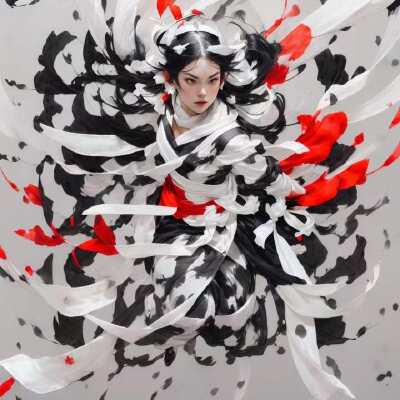
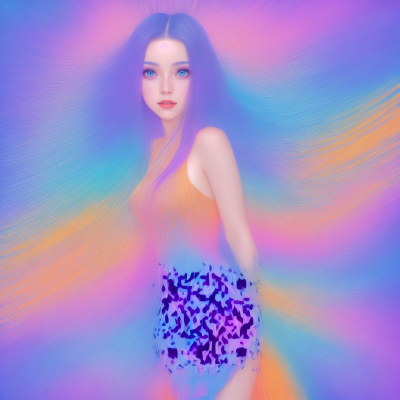
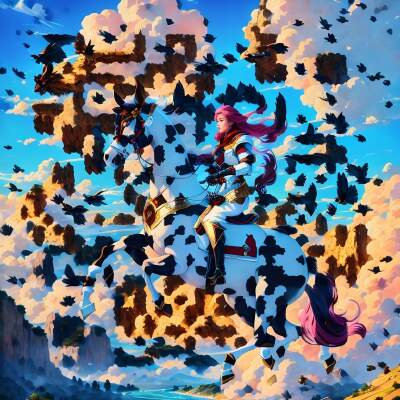
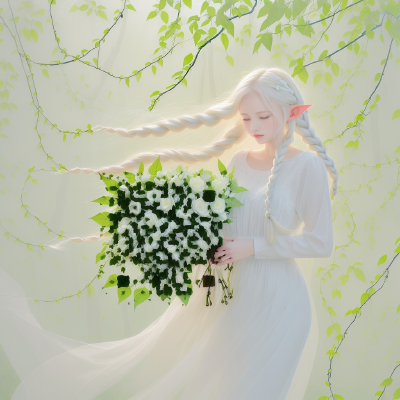
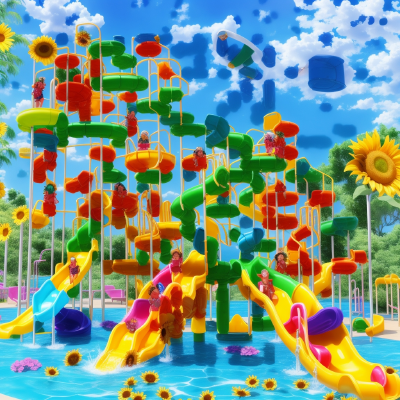
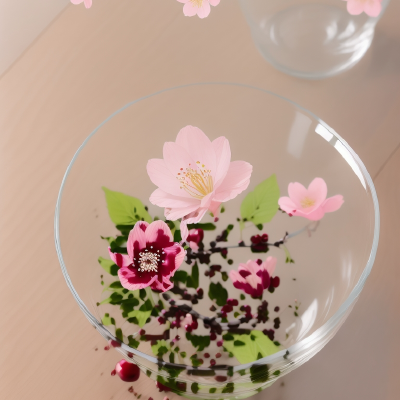
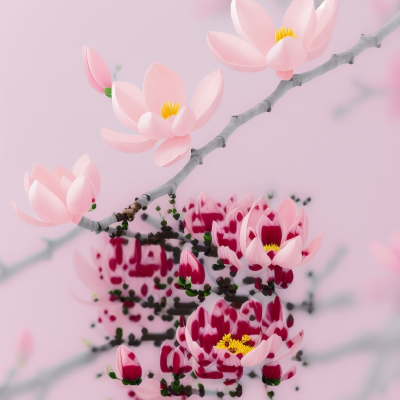
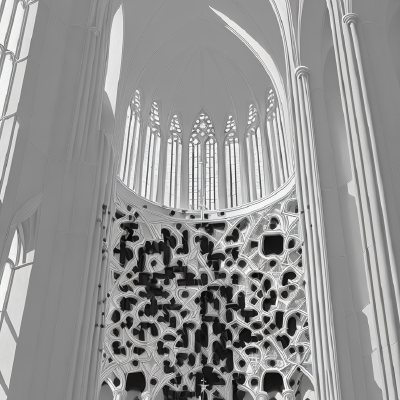
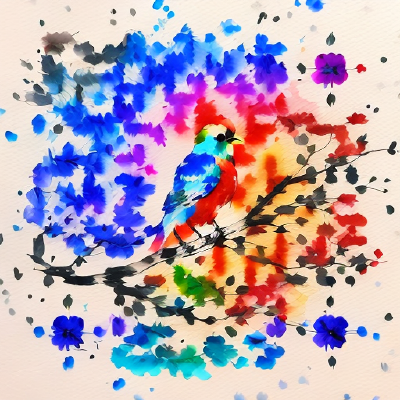
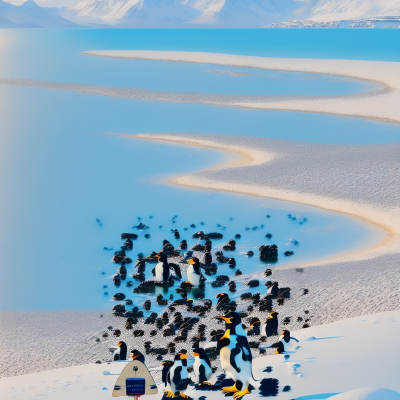
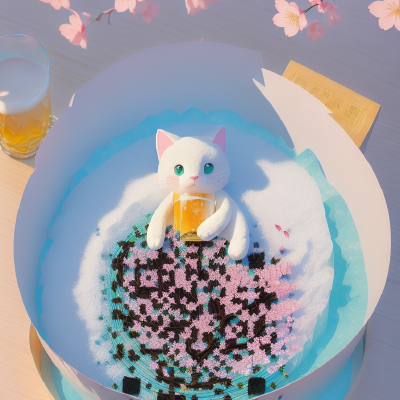
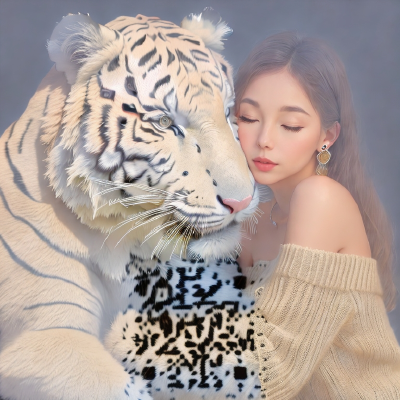
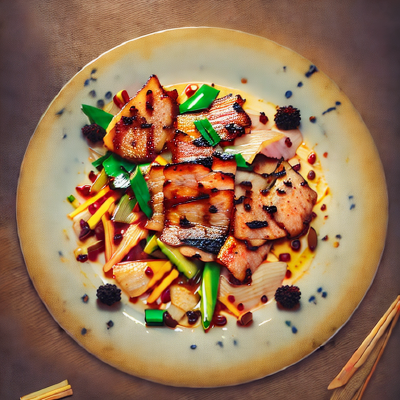
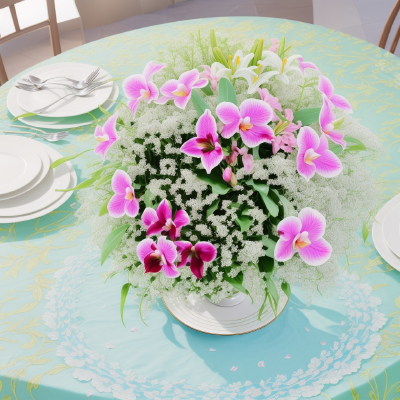
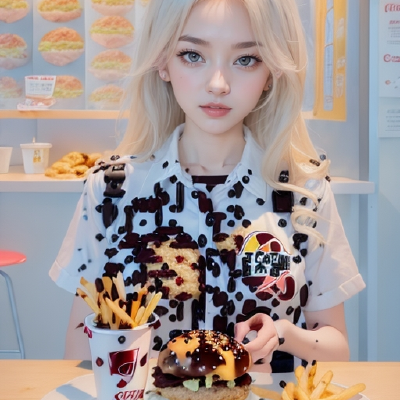
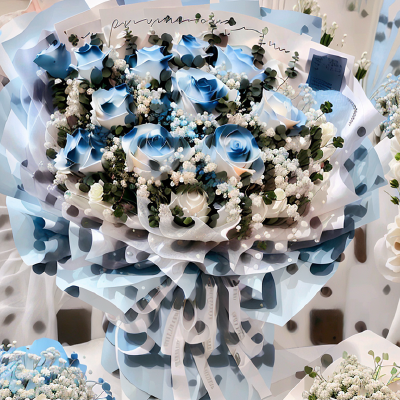
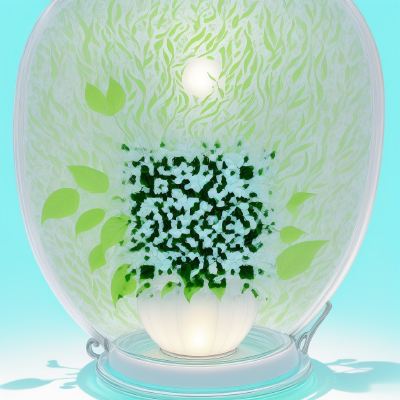
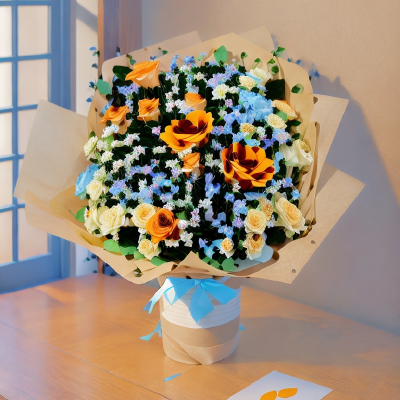
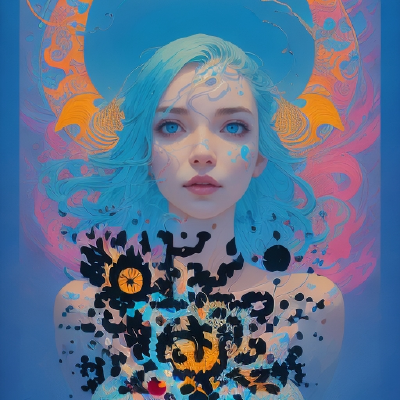
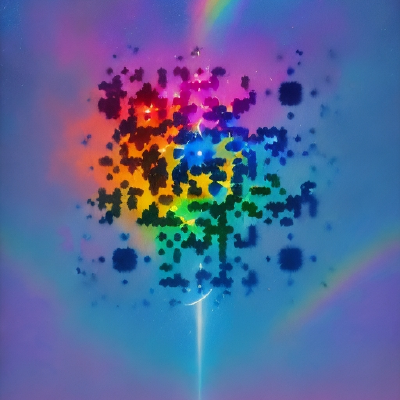
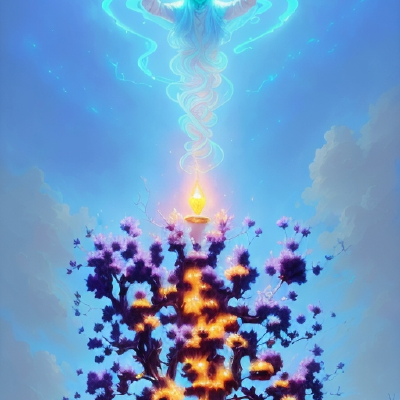
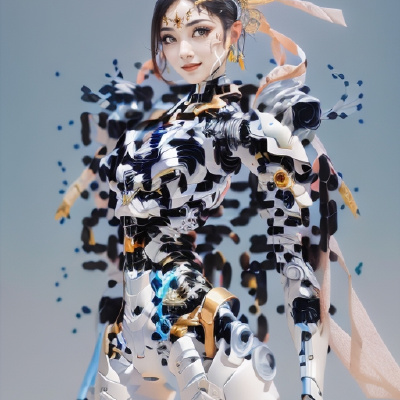
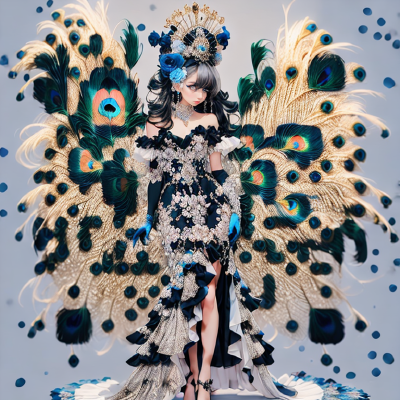
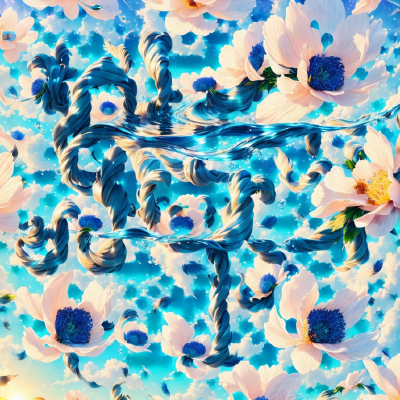
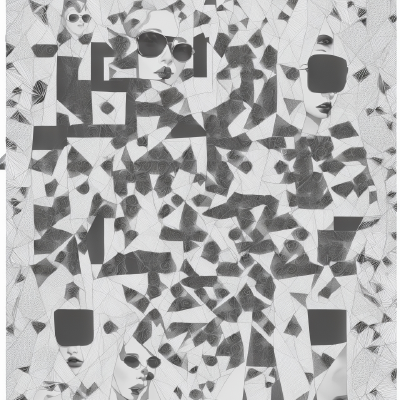
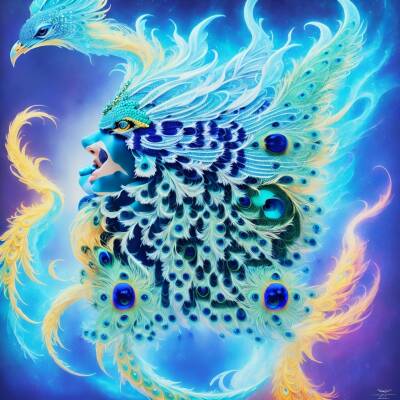
Social templates, and a few from each AI Art shelf.
Classic is the Social set from the app. The other tabs are a short pick from the live AI Art library, loaded from the same CDN the app uses.





05 / How it works
Write it. Style it.
Open the corners.
Scan it once.
-
01
Put the content in.
A URL, Wi-Fi, a contact, or a QR you already have on the camera roll.
-
02
Decide what it should look like.
A template, an AI Art style, a prompt, or a pass through the no-finder editor.
-
03
Take the frames out, if you want to.
Markers, module shapes, liquid effects, then Data rendering when the squares should leave.
-
04
Save it, then scan it.
Photos, or straight into AI Art. The version you print is the one a phone can still read.
Good to know
A design tool, not a promise about every camera.
- A style describes the picture. It does not guarantee a scan on a dark shirt or a glossy menu.
- Hiding finder squares is the point of the editor, and it asks more of the scanner. Check the export.
- Credits pay for AI Art generation. They are separate from Pro templates.
- Quiet space, contrast, and size still matter. Pretty does not replace a test scan.
FAQ
Before you generate the first one.
What is an AI Art QR?
A code drawn into a picture. You supply the content and pick a style or a prompt. The app keeps the code in the artwork so a camera still has something to read. Looking through the gallery does not spend credits. Generating does.
What does “no-finder” mean?
A normal QR has three large squares — finder patterns — that tell a camera where the code starts. The no-finder editor can restyle those squares or stop drawing them, using a data-only render, so the design is no longer framed by three boxes.
Will it still scan after the squares are hidden?
It can. Removing the squares changes how cameras find the code, which is why the editor is a tool and not a filter you forget about. Save the result and scan it with the phone you care about before you print a run.
Can I start from a QR I already made?
Yes. AI Art can upload an existing QR. The no-finder editor can too, or you can type the content directly. From the editor, Sync to AI Art QR sends that version onward.
Do I need an account?
You can create, save, and scan without signing in. Sign-in lives in Settings for when you want it. AI Art credits and Pro templates are separate: credits spend on generation, Pro unlocks premium templates.
Take it with you
Your next code does not have to look like a code.
Find QR Generator, then make one worth scanning — as art, without the corner squares, or both.
Links open a store search. Scan the export before you print it.